
Your Library
Your Library is everything you’ve saved. It’s one set of saves, seen two ways:
- The Queue is what to read next, newest first. Read something, choose Archive, and it moves from the inbox to the archive.
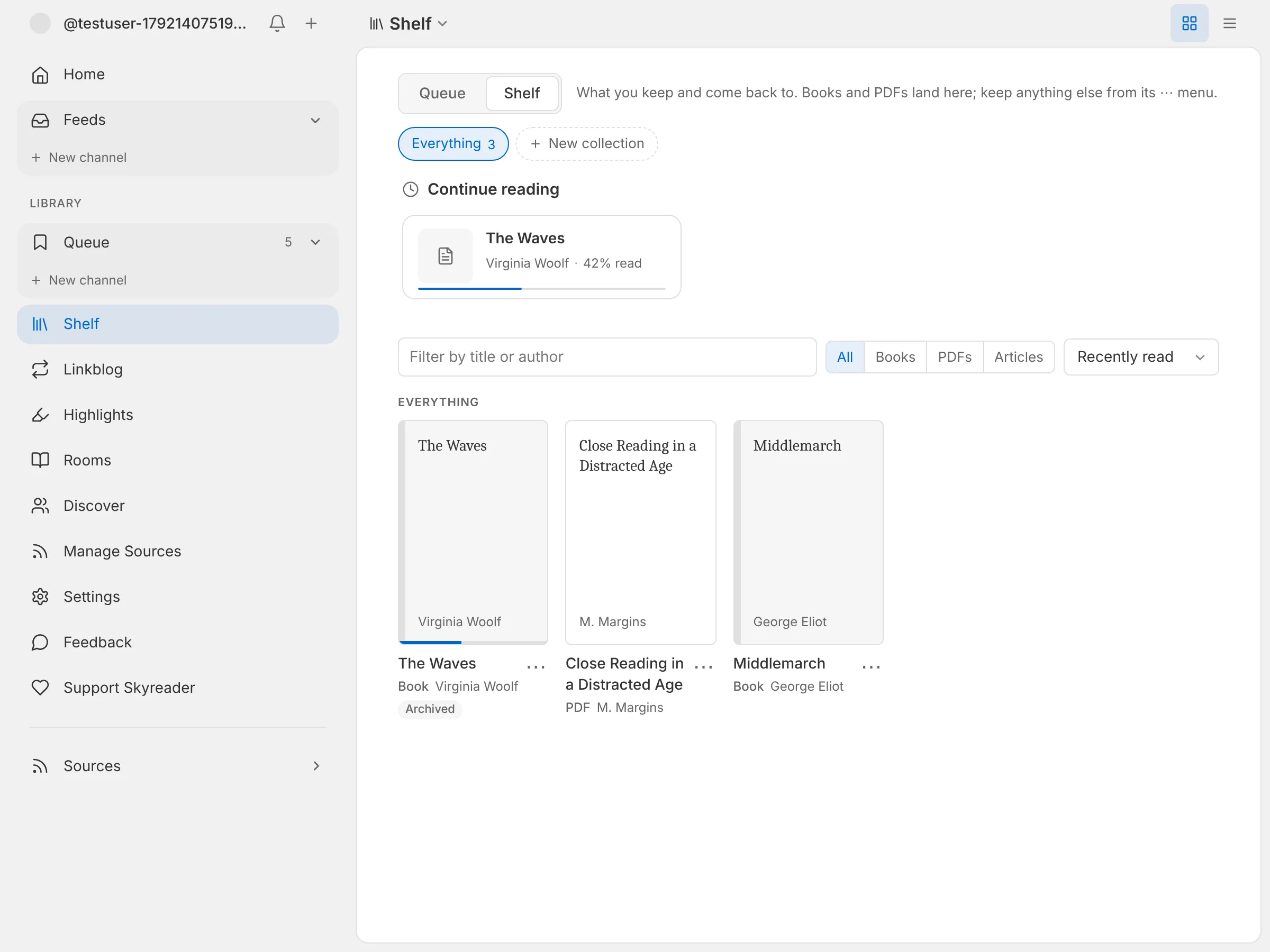
- The Shelf is what you keep and come back to, like books, papers, and references. Finishing something doesn’t take it off.
Library in the sidebar opens the Queue. Switch with Queue and Shelf at the top of either.
The Queue and the Shelf together
Section titled “The Queue and the Shelf together”Because they’re the same saves, an item can be in both, and what you do in one doesn’t change the other:
- Archiving clears an item from the Queue’s inbox. If it’s on your Shelf, it stays there, marked Archived.
- In the Queue, an item that’s also on your Shelf is marked On Shelf.
- Each item’s ⋯ menu shows both side by side: Archive under Queue, Add to Shelf under Shelf.
Putting things on the Shelf
Section titled “Putting things on the Shelf”Books and PDFs go on the Shelf as soon as you save them. To put anything else there, choose Add to Shelf from its ⋯ menu, or, while you’re reading it, press Saved and tick Shelf. Take off Shelf removes it, and the save stays in your Queue.
The Shelf opens on Continue reading, the things you’re partway through. Below that is everything on it, as covers or as a list. Filter by title or author, show only books, PDFs, or articles, and sort by what you read last, what was most recently connected, what you saved last, title, or author.
Collections
Section titled “Collections”Collections group what’s on your Shelf, like a course’s readings or a project’s sources.
A row at the top of the Shelf holds the ones you’ve pinned and the ones you opened last; All lists every collection, with a search. To keep a collection on the row, pin it from that list. Pinned collections also come first when you add something to a collection, from the reader or from an item’s ⋯ menu.
Create one with New collection at the bottom of the list, then add items with Add to collection, from their ⋯ menu in the Queue or on the Shelf, or tick one in the reader’s Save panel, where you can also start a new one. An item can be in more than one collection. A collection keeps its own order (Move up and Move down in the item menu) and can carry a short description.
Your collections are also listed under Library in the sidebar and the feed switcher, so you can open one from anywhere. To change their order, drag one up or down the sidebar. On a phone, press and hold one and choose Move up or Move down.
With a long list, the sidebar and the feed switcher show only a few: every collection you’ve pinned, then the top of the list up to five, plus the one you have open. Show more lists the rest, and Show less shortens it again; it stays the way you left it. To change the order, show the whole list first.
A collection holds up to 2,000 items. Collections are private to Skyreader unless you link one, and need an account and a connection.
Working on many at once
Section titled “Working on many at once”To file many items at once, choose Select above the Queue or the Shelf, tap the items you want (or Select all), then Add to collection. In a collection, Remove takes the selected items out of it. In the Queue’s Inbox, Archive archives the selected items. Delete deletes the selected items from your Library, after you confirm.
Linking a collection to Semble or Margin
Section titled “Linking a collection to Semble or Margin”A collection can stay in step with one of your Semble or Margin collections. A linked collection is public, because Semble and Margin collections are. Uploaded PDFs and EPUBs stay private and aren’t copied over, and your highlights and notes stay in Skyreader. Before you link, Skyreader tells you how many articles go across and how many uploads stay behind, and a linked collection keeps saying how many uploads stay. A collection of only uploads can still be linked; it has nothing to add there until you add an article. The collection’s order is kept in Skyreader. Unlink stops the syncing; both collections keep what they hold.
To link one, open it on the Shelf and choose Link to Semble or Margin, then pick one of your collections there, or let Skyreader make a new one with the same name. From then on, adding or removing an item in either place does the same in the other. Something added in Semble or Margin becomes a save in your Library and joins the collection. It goes straight to the Shelf, filed in your Queue’s Archive rather than its inbox; an article you’d already saved stays where it was. Changes made there come in when you open the collection.
To bring in a collection you already keep in Semble or Margin, open All on the Shelf, choose Import from Semble or Margin, and pick it. It comes in as a new collection with the same name, already linked; its items show up over the next few moments (the collection says Syncing… meanwhile) and then stay in step. Deleting a linked collection here leaves the Semble or Margin one as it is.
Any linked collection can also be read as a reading room: choose Open as room on it to see who’s reading along, and share that page’s link to invite people.
New connections from Semble
Section titled “New connections from Semble”When someone on Semble connects something to an article you’ve saved, the save shows a small new mark in the Queue and on the Shelf. It works for anything in your Library, whether or not you use Semble yourself.
The Shelf gathers these in a New connections lane: each item shows who connected what to it, how (supports, opposes, related, and so on), and their notes. If a note is cut off, Show full note opens it in full. The same lane shows on Home, where Customize can hide or move it. Tap a connection to open it in a new tab, save it, or connect back with a connection of your own, or tap the article’s title to keep reading where you left off.
The article’s discussion also starts on Connections, with the new ones marked. They stay marked until you mark them seen: with the check on the item, Mark as seen in the discussion, or Mark all seen on the lane. Your own connections never count as new.